
Teams Room Devices & Technology
Choosing the right hardware for Microsoft Teams Rooms is critical to delivering a seamless meeting experience.
Microsoft Teams Rooms certified devices, such as Microsoft Teams certified cameras, microphones, and speakers, are recommended to ensure compatibility and performance. The selection of hardware should align with the room size, and meeting requirements.
Table of Contents
Toggle1. Devices
1.1. Displays
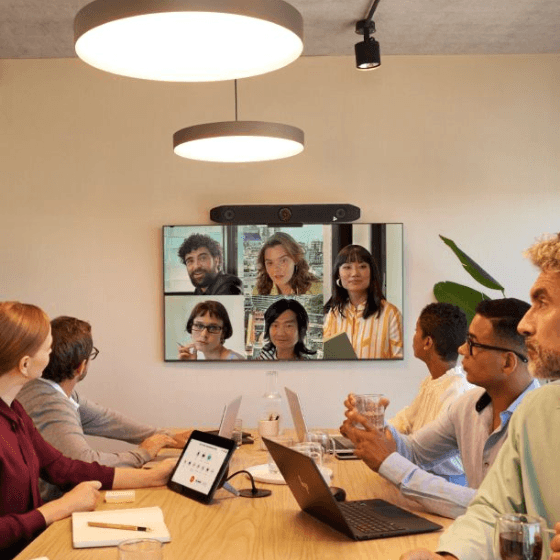
A high-quality display is at the heart of every video conferencing experience. Whether used for presenting content, hosting remote participants, or facilitating collaboration, the display ensures that all meeting attendees — both in-room and remote — remain fully engaged. The choice of display type and configuration has a significant impact on usability, productivity, and the overall meeting experience.
Selecting the right display size is just as critical as choosing the right type of display. A screen that is too small can make content difficult to read and remote participants hard to recognize, reducing overall engagement. On the other hand, an oversized display may dominate the room or create visual strain if the viewing distance is too short.
As a rule of thumb, the display size should be proportional to the room dimensions and the distance of the farthest participant from the screen. In small huddle rooms, a 55”–65” display is often sufficient, while medium and large meeting rooms typically benefit from 75”–98” screens or dual-display setups. For extra-large spaces such as auditoriums or boardrooms, even larger or multiple displays may be required to ensure everyone has a clear and comfortable view.
The right display size ensures that shared content, meeting chat, and video feeds are visible without compromise — helping teams stay focused and connected throughout the meeting.
By the way … here’s why we don’t recommend a projector. Although projectors offer a cost-effective alternative (for 21:9 displays), they also require adequate room darkening: after all projectors perform best in controlled lighting environments. Furthermore the projection surface must be flat to avoid image distortion.
1.1.1. Single vs. Dual Display Setup


Organizations can opt for either a single display or two displays mounted side by side.
Single display solutions are more space-efficient and cost-effective, making them a good fit for smaller rooms. However, they require splitting screen real estate between shared content and remote participants, which can limit visibility.
Dual display setups create a more natural flow for hybrid collaboration.
One screen can be dedicated to content, while the other shows remote participants.
This provides clarity and balance, especially in medium to large meeting rooms.
The trade-off is higher investment and the need for sufficient wall space.
1.1.2. Ultra-Wide (21:9) Displays

While the 16:9 aspect ratio remains the standard for most presentation displays, a new format is gaining traction: 21:9. This ultra-wide aspect ratio is specifically designed to support the Microsoft Teams Rooms Front Row layout.
In 2022, Microsoft introduced Front Row — a modern screen layout featuring an ultra-wide aspect ratio.
Front row is designed to handle the multiple windows needed to run hybrid meetings, where good size windows of remote participants are displayed alongside a large main content window and other dialogue boxes.
These ultra-wide screens offer an immersive and inclusive meeting experience. With space for life-sized video tiles, shared content, and meeting chat all on one canvas, 21:9 displays are ideal for hybrid meetings where engagement and visibility are crucial.
1.1.3. Touchscreen Displays

Today’s meeting spaces call for smart, collaborative technology that supports engagement and flexibility. Touch-enabled displays add an extra dimension to collaboration. Beyond simply viewing content, teams can interact with it in real time: annotating, whiteboarding, and brainstorming directly on the screen.
Seamless file sharing and live co-editing features also play a vital role, allowing teams to collaborate on documents or projects simultaneously, regardless of their physical location.
Touchscreens are particularly valuable in workshops, training sessions, and co-creation meetings, as they allow both in-room and remote participants to contribute equally. While touchscreens come at a higher cost and require a bit more user training, they can significantly elevate the level of interactivity and productivity.
1.2. Cameras

We all know that video adds an extra dimension to a distance meeting. In the drive to build relations, it has become clear that we want to be able to see everyone taking part in the meeting.
- Even in the smaller meeting rooms it can often be worth investing in video equipment, so the meetings can be conducted with good quality images and sound.
- Choose a video camera that is suited to the size of the room, the number of meeting participants and the purpose of the meeting. This means selecting a camera with the right field of view so everyone can be seen.
- Voice activation and motion-tracking technology keep speakers in frame, helping maintain audience attention and improving communication clarity.
- A sharp, natural image boosts the impression of professionalism and can enhance the capacity for personal expression.
In summary: a camera is a critical element in any meeting room scenario. There are many aspects to consider around form factor, light handling, focus type (digital or mechanical), pan/tilt/zoom (PTZ), auto tracking, price, etc.
1.2.1. Content camera | Whiteboard camera
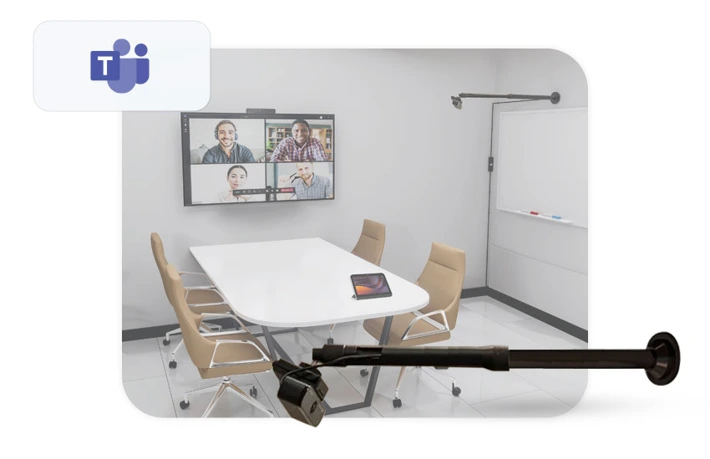
A content camera (or whiteboard camera) is a specialized, AI-enhanced camera designed to capture and share physical whiteboard content in a Microsoft Teams Rooms environment. Unlike traditional room cameras that focus on participants, a content camera is optimized to deliver a clear, readable view of handwritten notes, sketches, and diagrams — ensuring that remote attendees can fully engage in collaborative sessions.
At the core of this technology is intelligent image processing. The camera automatically detects the whiteboard area, crops and straightens the image, and enhances contrast to improve readability. One of its most valuable features is the AI-driven “transparency” effect: when a presenter stands in front of the whiteboard, the system makes him/her partially transparent or removes him/her from the image altogether. This ensures that written content remains fully visible at all times, eliminating one of the most common challenges in hybrid meetings.
From a hardware perspective, content cameras are typically installed separately from the main room camera and positioned to cover the full whiteboard surface. They connect directly to the room system — either a dedicated compute module or an all-in-one video bar — and operate seamlessly within the overall AV setup. This makes them a highly complementary component in meeting rooms where physical whiteboards are still actively used.
In summary, a content camera is a strategic addition to any modern meeting room setup. It extends the lifecycle and usability of physical whiteboards within a digital collaboration environment, enabling more natural, inclusive, and effective hybrid meetings without requiring users to change their workflows.
1.2.2. Companion camera

A single front-of-room camera can be a problem.
Conference rooms today are equipped with a single front-of-room camera that can frame participants as a group or in individual tiles in a composite gallery view.
But as soon as in-room participants turn to each other to speak or turn their faces away from the front room, the camera is unable to maintain a face forward perspective.
Remote participants can no longer clearly see the discussion at the table or pick up on nonverbal queues.
By adding a tabletop center-of-table perspective (with a companion camera), participants at the table are always captured from the best angle.
AI chooses between the two camera streams (front-of-room camera or companion camera) to automatically deliver the best face forward view of participants at the table.
1.3. Microphone & speaker

Audio is just as important as the video experience – in fact, even more important!
Ideas must be clearly communicated for meetings to have maximum impact and for all hybrid workers to be equal participants.
Next level innovations such as removing distracting sounds (such as keyboard typing, loud HVAC systems, and any other non-speech sounds) and outside (hallway) conversations so meetings won’t be interrupted.
When sitting in a meeting room, we always need to ensure that microphones and speakers are tailored to the situation and the number of people in the room. One thing that many people have noticed, as video conferences have become longer and more frequent, is that audio quality is a crucial factor.
If we can’t hear well, the meeting will not go well, which is why we need to put audio front and center.
1.3.1. What is the right microphone for each space?

Table-top and ceiling microphones provide maximum coverage for vocal fidelity, especially if conversations happening locally need to be shared remotely.
However, they require a more involved installation and table-top microphones may be more obtrusive to users sitting at the table.
Wall mounted solutions provide the voice at the front of the room where remote participants are viewed. Installations are generally less involved, but local conversations that are off-axis or at a distance may not be picked up as clearly as though directed at the front of the room screens.
1.3.2. What are the right speakers for each space?

Table-top and ceiling speakers provide maximum coverage. Appropriate sound coverage is important in larger spaces where many participants are located further away from the front of the room.
Ceiling speakers and cable requirements make this a more involved installation than a front of room soundbar, and tabletop ceiling speakers might present obstacles to those in the room who require table space for their personal devices.
Wall mounted solutions provide the voice at the front of the room where remote participants are viewed. This location of the speakers makes it sound like the audio is coming from the remote participants.
Installations are generally less involved, but the volume will decrease the further away the in-room participants are from the speaker.
1.4. Compute modules
1.4.1. Bring Your Own Device (BYOD) in Meeting Rooms

Bring Your Own Device (BYOD) or BYOM (Bring Your Own Meeting) may sound straightforward, but in practice, it’s rarely seamless. Even in meeting rooms designed with BYOD in mind, a recurring bottleneck often emerges: connecting personal laptops to the room’s infrastructure. Presentations stutter, cameras fail to activate, microphones aren’t recognized … and suddenly, the flow of the meeting is broken.
So, what’s the “problem” in BYOD spaces?
BYOD rooms allow participants to bring their own laptop and join meetings directly — without relying on a fixed room system. This offers flexibility, cost savings, and a familiar workflow for users. However, with that flexibility come significant challenges:
- Connection confusion: HDMI, USB-C, USB-A, DisplayPort — every device seems to need something different.
- Peripheral frustration: Room microphones, speakers, and cameras often don’t work, or only partially function.
- Cable clutter & wasted time: “Hold on, let me find the right adapter…” is a phrase that disrupts too many meetings.
Possible solutions for BYOD challenges
Despite these issues, there are effective strategies to make BYOD spaces reliable and user-friendly. Standardizing connection points through docking stations or USB hubs removes the guesswork and reduces the constant hunt for adapters.
Wireless presentation solutions simplify screen sharing, eliminating messy cabling and enabling quick connections.
Some organizations even adopt hybrid setups: combining a native room system for seamless Microsoft Teams calls with a BYOD option for flexibility when needed.
1.4.2. Microsoft Teams Rooms on Windows – the modular solution

Microsoft Teams Rooms on Windows delivers a complete, integrated meeting experience designed to make hybrid collaboration seamless. Unlike BYOD setups, Teams Rooms are purpose-built solutions that combine certified hardware — such as touch controllers, cameras, microphones, and speakers — with the Microsoft Teams platform.
The result is a consistent, reliable, and user-friendly meeting environment that requires no technical setup from participants.
One of the key strengths of Teams Rooms on Windows is the native integration with Microsoft Teams features. This includes one-touch join, proximity join, calendar integration, intelligent camera framing, room occupancy data, and advanced layouts like Front Row on 21:9 displays. The system ensures that both in-room and remote participants feel equally included, bridging the gap between physical and virtual meeting spaces.
From small huddle rooms to large boardrooms, Teams Rooms on Windows can be scaled with the right combination of certified devices. IT administrators benefit from centralized monitoring and management through the Teams Admin Center, ensuring the room stays up-to-date, secure, and always ready for the next meeting.
In short, Teams Rooms on Windows provide the reliability of a fixed system with the intelligence of Microsoft Teams — offering organizations a future-proof foundation for professional, high-quality collaboration.
1.4.3. Microsoft Teams Rooms on Android – the all-in-one solution

Microsoft Teams Rooms on Android offers a streamlined and cost-effective approach to transforming meeting spaces into collaborative hubs.
Built on Android-based platforms, these systems are optimized for simplicity and ease of deployment.
Teams Rooms on Android devices typically integrate the compute unit directly into the videobar, which reduces complexity and minimizes cabling. This all-in-one design ensures a cleaner setup with fewer points of failure, while still providing essential Microsoft Teams functionality such as one-touch join, proximity join, content sharing, and reliable audio/video performance.
Although more lightweight compared to Teams Rooms on Windows, the Android-based solutions support many advanced features, including intelligent cameras, certified audio peripherals, and dual-screen setups.
They are ideal for organizations that want a plug-and-play solution with minimal IT overhead, without sacrificing the core collaboration experience that Teams provides.
For businesses managing a large number of rooms, Teams Rooms on Android also integrate with the Microsoft Teams Admin Center, allowing centralized monitoring and updates — ensuring consistency across all meeting spaces.
In summary, Teams Rooms on Android deliver a flexible and user-friendly solution that balances affordability with functionality, making them an excellent fit for a wide range of collaboration scenarios.
1.4.4. Which Setup is Right for You?
Compare the Solutions.
| Feature | BYOM (Bring Your Own Meeting) | Microsoft Teams Rooms on Windows (MTRoW) | Microsoft Teams Rooms on Android (MTRoA) |
|---|---|---|---|
| Flexibility | ✔ Works with multiple platforms | ✖ Teams-focused only (*) | ✖ Teams-focused only (*) |
| Ease of Use | ⚠ User-dependent (cables, adapters) | ✔ One-touch join | ✔ One-touch join |
| Hardware Requirements | Minimal (user laptop + peripherals) | Purpose-built / dedicated PC + certified devices | Compact all-in-one device |
| Features | Limited by user device | ✔ Full Teams features | Solid Teams features (slightly limited) |
| Reliability | ⚠ Varies by user setup | ✔ Enterprise-grade stability | ✔ Reliable, low IT dependency |
| Cost | ✔ Low upfront cost | ✖ Higher investment | Moderate, budget-friendly |
| Best For | Small, flexible rooms | (Extra) large / complex rooms | Small - medium to large rooms |
(*) Direct Guest Join allows MTR systems to join Zoom, Google Meet or Webex meetings with limited functionality.
1.5. Boards

All-in-one boards are integrated collaboration displays that combine a large-format touchscreen, built-in microphone and speaker system, and smart camera technology into a single device.
Designed for Microsoft Teams Rooms, they bring together all the core meeting functions in one sleek, easy-to-use solution.
With an all-in-one board, users can:
- Start or join Teams meetings instantly
- Collaborate on digital whiteboards in real time
- Share and annotate content directly on the touchscreen
- Benefit from high-quality audio and video without additional equipment
Advantages:
- Simplicity: Combines display, audio, video, and interactivity in one device, reducing the need for multiple peripherals.
- Ease of deployment: Quick to install and configure, with fewer cables and components.
- Consistency: Provides a uniform, intuitive user experience across different rooms.
- Collaboration-friendly: Enables interactive teamwork through touch, annotation, and digital whiteboarding.
Considerations:
- Flexibility: Less modular than a traditional setup — upgrades or replacements typically require changing the entire unit.
- Room size: Best suited for small to medium-sized meeting spaces; larger rooms may need additional microphones, speakers, or displays.
- Cost: The integrated design can be more expensive compared to modular solutions, depending on room requirements.
All-in-one boards are particularly valuable for organizations seeking a clean, streamlined Microsoft Teams Room experience. They minimize technical complexity, speed up meeting start times, and promote interactive collaboration — all while maintaining a professional aesthetic in the meeting space.
1.6. Touch controllers

In a Microsoft Teams Rooms (MTR) setup, the touch controller is the central hub for managing your meeting experience. This dedicated device streamlines interactions, making it incredibly easy to start meetings, share content, and control various aspects of your conference.
A touch controller is typically a tablet-like device permanently placed on the meeting room table. It’s designed to provide a consistent and intuitive user interface for all Microsoft Teams Rooms functionalities. While it physically resembles a tablet, it’s not a general-purpose device; its software is specifically tailored for the Teams Rooms experience.
Key Functions and Benefits:
- One-Touch Join: The most significant advantage is the ability to join scheduled meetings with a single tap. No more fumbling with links or dialing in – simply select your meeting from the calendar displayed on the controller.
- Meeting Control: During a meeting, the touch controller allows you to:
– Mute/Unmute microphones
– Adjust speaker volume
– Turn cameras on/off and adjust camera views
– Add participants to an ongoing meeting
– End the meeting - Room Controls (Integrated): For more advanced setups, the touch controller can integrate with room automation systems. This means you might be able to control lighting, blinds, or even projector screens directly from the same interface.
- Calendar Integration: It displays the room’s meeting schedule, allowing for quick ad-hoc meetings or extending current sessions if the room is available.
- Always On, Always Ready: Unlike personal devices, the touch controller is always powered and connected, ensuring that your MTR is ready for use at a moment’s notice.
By integrating a touch controller into your Microsoft Teams Rooms setup, organizations equip their meeting rooms with a professional, user-friendly tool that drives efficiency, reduces setup time, and ensures every meeting runs smoothly.
1.7. Scheduling panels

Scheduling panels are touch-capable displays installed outside meeting room doors that connect to a back-end server, scheduling solution, or space management service (e.g., Microsoft Exchange / Office 365, Microsoft Teams, etc.).
Scheduling panels are dedicated devices and provide three core functions:
- Availability Indicator (Green / Red LED): Makes it quick and easy for users to find an available room. This room display reduces meeting interruptions by checking room availability from a distance via multi-colored LED lights.
- View of Room’s Schedule and Information: Allows users to see the schedule and information (e.g., room size, occupancy, etc.) and find available time slots.
- Ability to Book the Room: Allows users to reserve rooms quickly and easily for ahoc meetings.
More Benefits of scheduling panels:
- No more ghost meetings: It’s common for people to book a meeting room and forget to cancel the reservation when their meeting is rescheduled or canceled. So, the room stays empty but unavailable to others.
- Easy ad-hoc meetings: (see video next to this) Some of the most valuable meetings happen on the fly, with no advanced planning or preparation. And many such meetings require a meeting space. But users near or even standing in a meeting room typically have no idea whether that room is available or already booked. Often, users must vacate and find another room when those who booked the room arrive. Also for ad-hoc meetings a purpose-built scheduling panel designed for 24/7/365 operation in small, medium, or large-scale meeting room environments is an excellent solution.
2. Technology
2.1. Smart camera technology
Source: https://techcommunity.microsoft.com/blog/microsoftteamsblog/a-deep-dive-into-intelligent-cameras-multi-stream-and-cloud-intelliframe-for-tea/3915387
Smart camera technology brings intelligence to video meetings by automatically framing participants and adapting the view in real time. Instead of requiring manual adjustments, the camera uses advanced AI to detect where people are seated, track active speakers, and ensure everyone remains clearly visible for the remote participants.
This creates a more natural and inclusive meeting experience. Remote participants no longer see an empty room or poorly framed images; instead, they feel as if they are seated at the same table.
The technology can smoothly transition between speakers, widen the view when more people join, or zoom in to highlight the active conversation.
By integrating smart camera functionality into a Microsoft Teams Rooms, organizations eliminate the distraction of manual camera control and guarantee a professional, consistent visual experience in every meeting.
The result is a seamless collaboration environment where participants can focus entirely on the discussion — not on the technology.
2.2. Hybrid noise reduction
Hybrid noise reduction (or noice canceling) technology enhances the audio experience in video meetings by intelligently filtering out unwanted background sounds while preserving clear, natural speech.
Instead of simply muting all non-voice input, the system uses advanced AI to distinguish between human voices and disruptive noises such as keyboard typing, loud HVAC systems, paper rustling, or side conversations.
This ensures that remote participants hear only what matters — the people speaking — without distractions from the meeting room environment. The result is a more focused and professional meeting atmosphere, where communication flows smoothly and participants can engage without repeating themselves or adjusting microphone settings.
By integrating hybrid noise reduction into a Microsoft Teams Room setup, organizations benefit from:
- Improved clarity: Speech is crisp and intelligible, even in open or noisy spaces.
- Less distraction: Non-relevant sounds are automatically suppressed.
- Consistent experience: Meeting quality remains high across different room types and conditions.
Hybrid noise reduction removes one of the most common frustrations of hybrid meetings and helps ensure that every participant — in-room or remote — can fully concentrate on the conversation.
Important: Noise suppression and echo cancellation may only ever be handled by one instance – either by the software (Teams) or by the hardware. Never by both simultaneously.
2.3. Proximity join
Proximity Join makes it effortless for participants to connect to a Microsoft Teams Rooms without the need to manually dial in or enter meeting details.
When a user enters the room with their laptop or mobile device, Teams automatically detects the nearby room system and offers the option to join the scheduled meeting with a single tap.
This feature streamlines the meeting experience by:
- Eliminating complexity: No need to search for meeting codes or connect cables.
- Saving time: Meetings can start instantly, reducing setup delays.
- Enhancing inclusivity: Both in-room and remote participants are seamlessly connected from the start.
Proximity Join ensures meetings begin smoothly and professionally, while minimizing the technical barriers that often disrupt collaboration.
User Scenario: Proximity Join in Action
Imagine team members walking into a meeting room a few minutes before a scheduled Microsoft Teams call. As soon as they open their laptop or unlock their smartphone, Microsoft Teams instantly detects the nearby room system. A notification pops up: “Would you like to join this meeting from the room?”
With a single click, the participant confirms, and the room system automatically joins the meeting. The camera, microphones, and speakers in the room activate, ensuring high-quality audio and video for everyone. At the same time, the participant’s personal device remains connected for private chat, note-taking, or content sharing.
The result: no typing of meeting IDs, no manual connection steps, and no wasted minutes. The meeting starts smoothly, participants stay focused, and the technology works quietly in the background — exactly as it should.
2.4. One touch join
One-Touch Join simplifies the meeting experience by allowing participants to start or join a scheduled Microsoft Teams meeting with a single tap on the room’s touch controller.
Instead of searching for dial-in details or manually entering meeting IDs, the scheduled meeting is automatically displayed on the room console.
With one quick action, the room connects to the call, activating the camera, microphones, and speakers so the meeting can begin instantly.
Key benefits include:
- Efficiency: Meetings start on time, with no technical delays.
- Simplicity: Users only need one action to launch the meeting.
- Consistency: The same intuitive workflow in every Teams Rooms.
- Professionalism: Eliminates fumbling with codes or devices at the start of a meeting.
One-Touch Join ensures that technology never gets in the way of collaboration. It creates a frictionless meeting experience where participants can focus on the agenda — not on the setup.
User Scenario: One-Touch Join in Action
A project team is scheduled for a video call with colleagues in multiple locations. As participants gather in the meeting room, the touch controller on the table automatically displays the day’s calendar with upcoming Microsoft Teams meetings. The scheduled call is clearly visible, ready to launch.
When the meeting time arrives, one team member simply taps the meeting entry on the touch controller. Instantly, the Microsoft Teams Room system connects: the display shows remote participants, the camera adjusts to the room, and the microphones and speakers activate.
Within seconds, the meeting is live — no codes to enter, no logins required, and no technical interruptions. Everyone in the room is connected, the agenda starts on time, and the focus stays on collaboration rather than setup.
2.5. Direct guest join
Direct Guest Join enables Microsoft Teams Rooms to connect seamlessly to meetings hosted on other platforms, such as Zoom, Webex (and, depending on the system, Google Meet).
Instead of requiring additional software or complex setup, participants can join these external meetings directly from the Teams Rooms interface using the room’s touch controller.
With just a few taps, the system launches the guest meeting in the room, activating the camera, microphones, and speakers. This ensures that both in-room and remote participants experience the same high-quality collaboration, regardless of the platform being used.
Key benefits include:
- Flexibility: Join external meeting invitations without leaving the Teams environment.
- Simplicity: No need for additional hardware, logins, or manual adjustments.
- Consistency: Provides a unified workflow for both Teams and non-Teams meetings.
- Professionalism: Reduces friction when collaborating with partners, suppliers, or clients who use different platforms.
Limitations:
- Not all platforms are supported: While Direct Guest Join supports most major platforms (Zoom, Webex and, depending on the system, Google Meet), some platforms are still not supported.
- Possibly reduced functionality: Some features of external platforms, such as chat or polls, may not be available in the Teams Rooms environment.
Direct Guest Join helps organizations maintain a Microsoft Teams Rooms–centric environment, while still offering the freedom to collaborate across platforms when needed.